

Please follow these steps to add Reelfy into a Foxify page
Install both apps from the Shopify App Store.
In the left menu, Sales channels → Online Store → Themes → click Customize or Edit them button in the current theme.
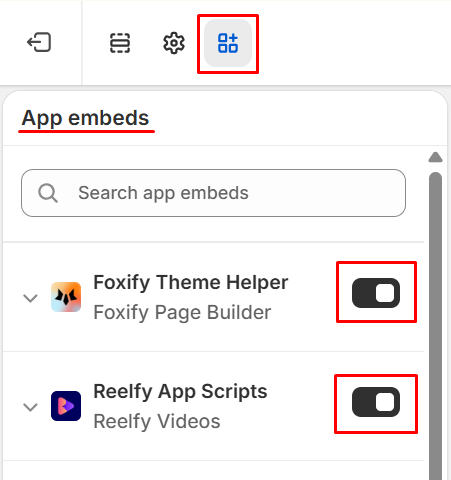
In the left sidebar, click on the app embeds icon. In App embeds, click the toggle button on the right to activate Foxify Theme Helper and Reelfy App Scripts.
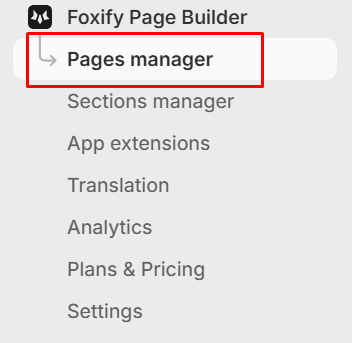
In the left menu, Foxify Page Builder → Pages manager, then click to open a Foxify page that you want to add Reelfy gallery into.
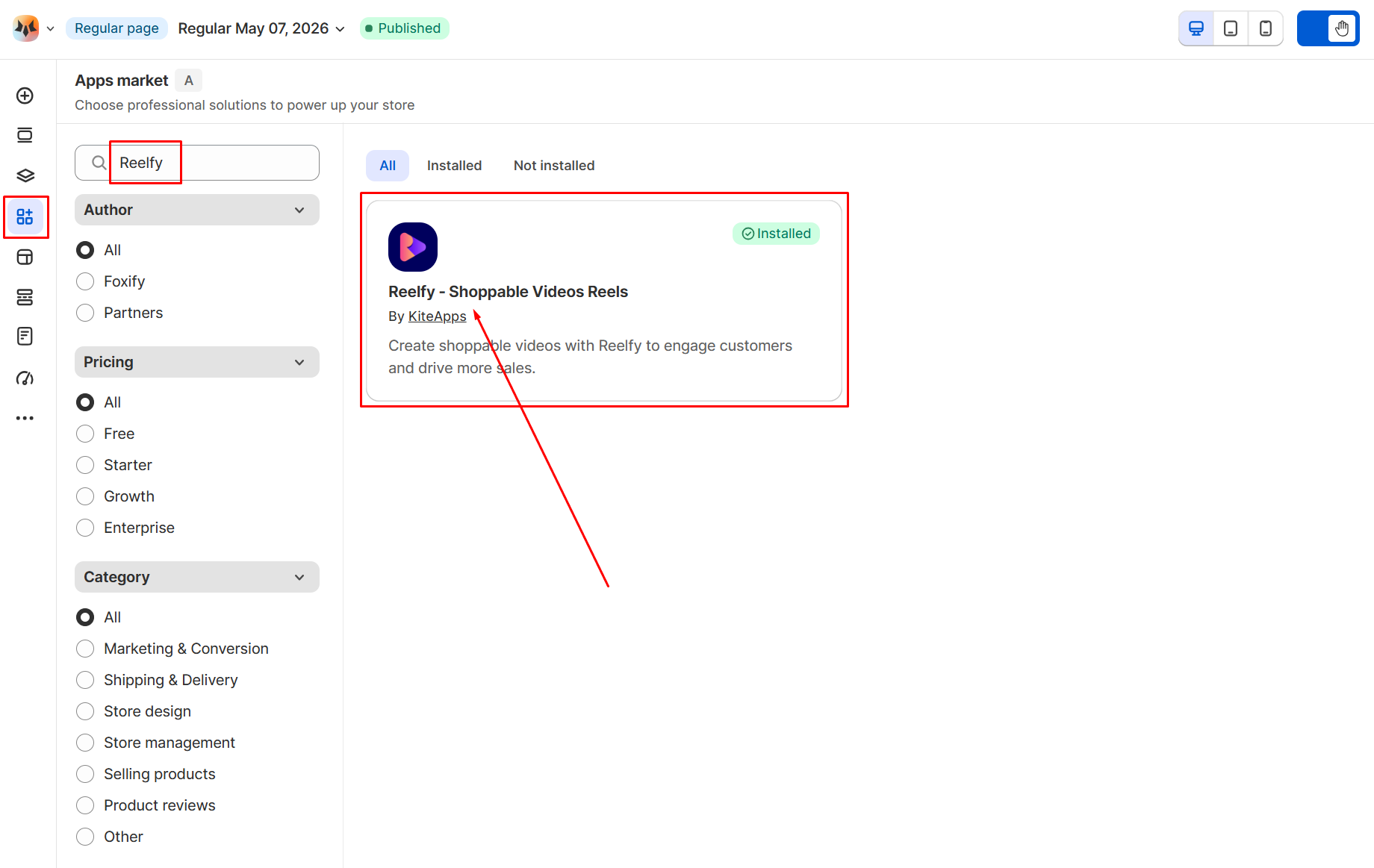
Click the Manage apps icon on the left, search for Reelfy. A block of Reelfy will appear, please click on it.
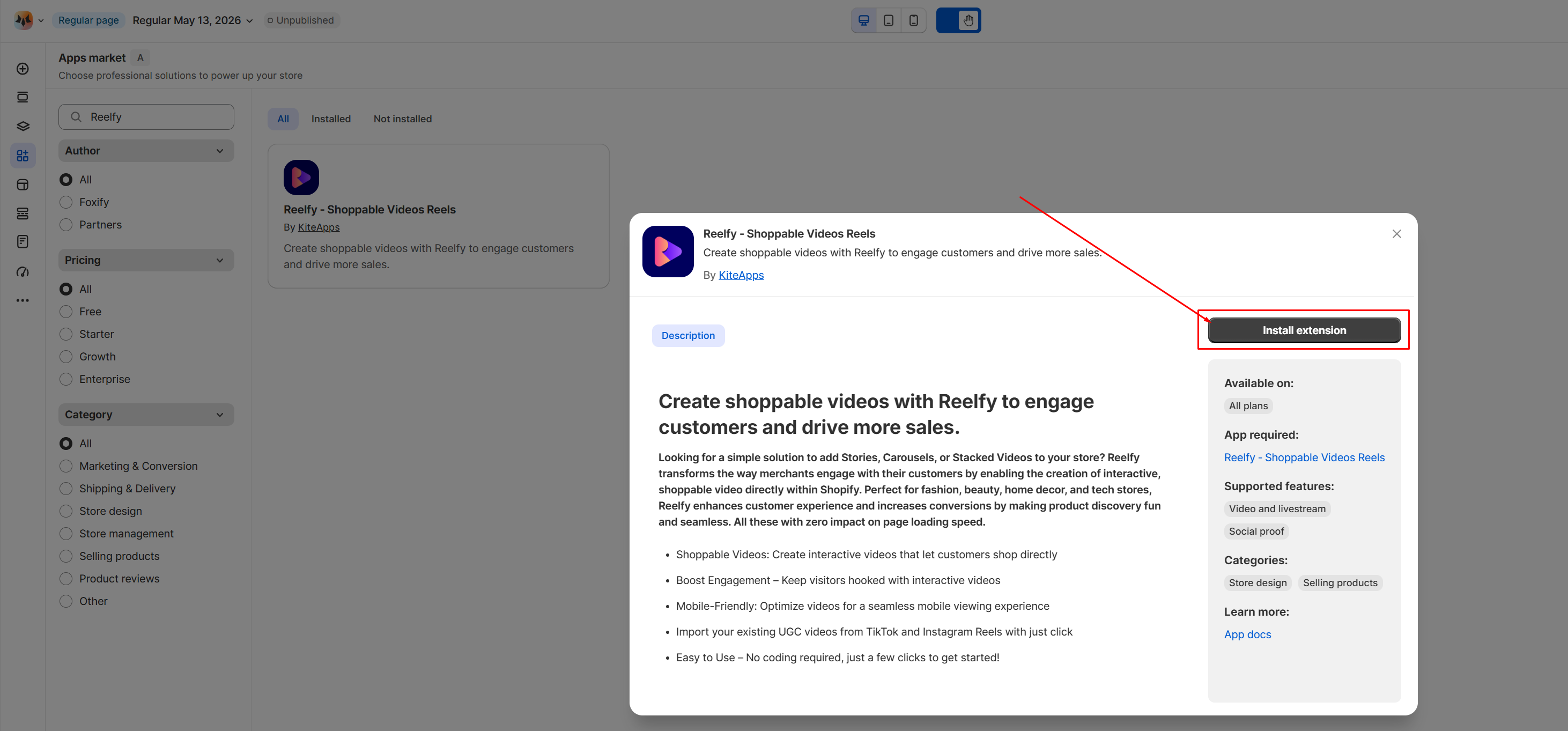
A pop up will appear, please click on the Install extension button to make Reelfy element available.
Back to your Foxify editor to add a new section that will contain the Reelfy element.
Click on the Add elements icon on the left, then click App blocks, now you will see Reelfy in the INSTALLED APPS, and the Video element (Reelfy element).
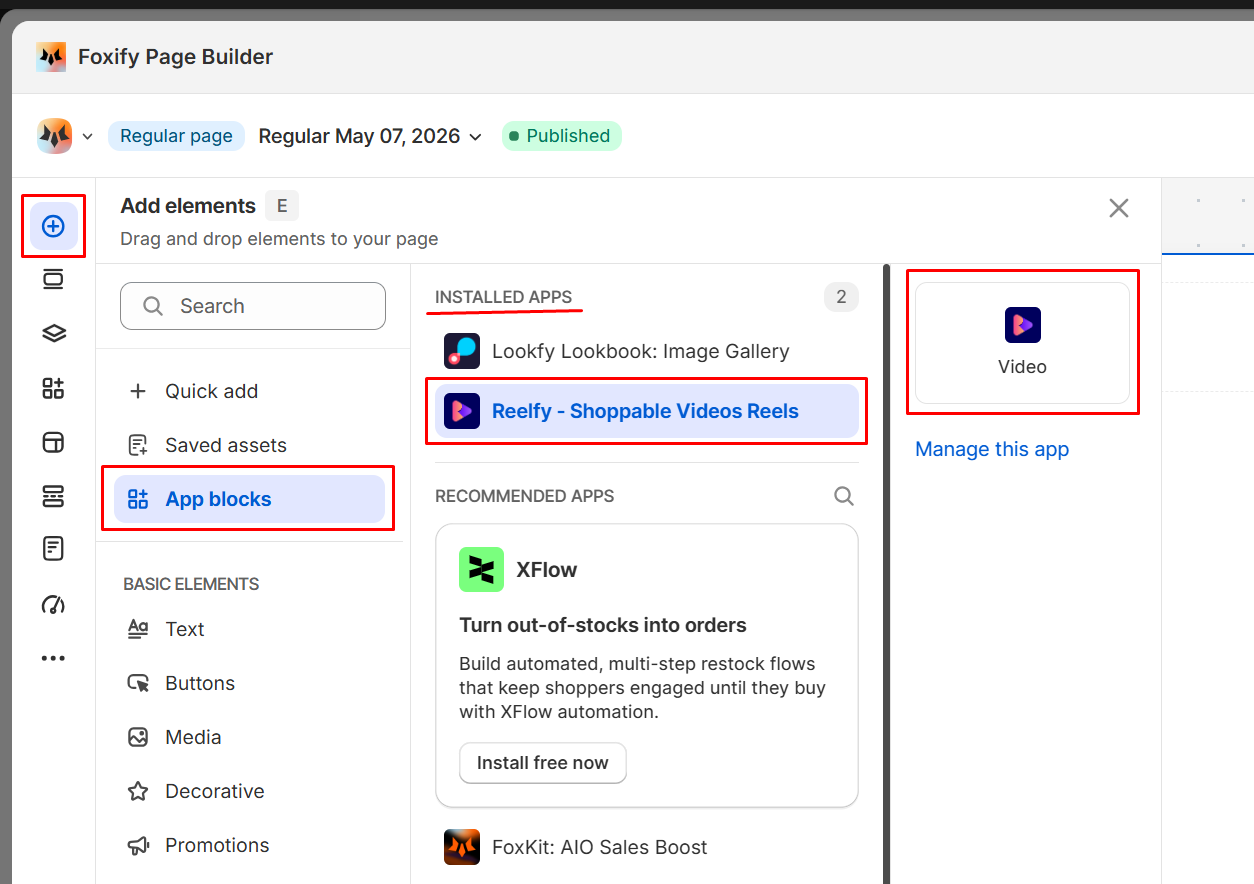
Drag and drop the Video element into the new section that you create before.
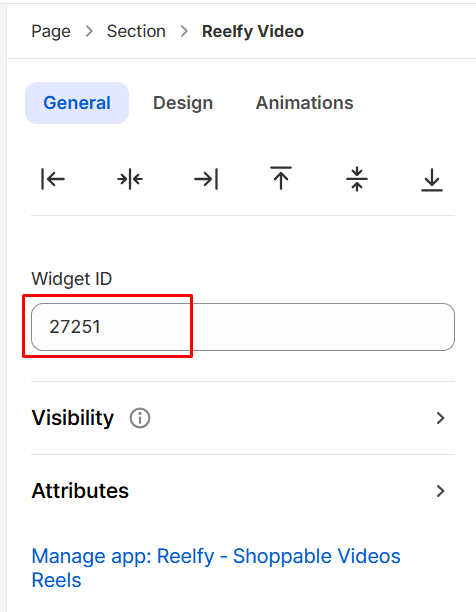
In the Reelfy Video’s settings panel on the right side of the page editor, click the General tab, and copy the Reelfy gallery’s ID to paste into the Widget ID field.
Save, preview and publish to enjoy your reels.