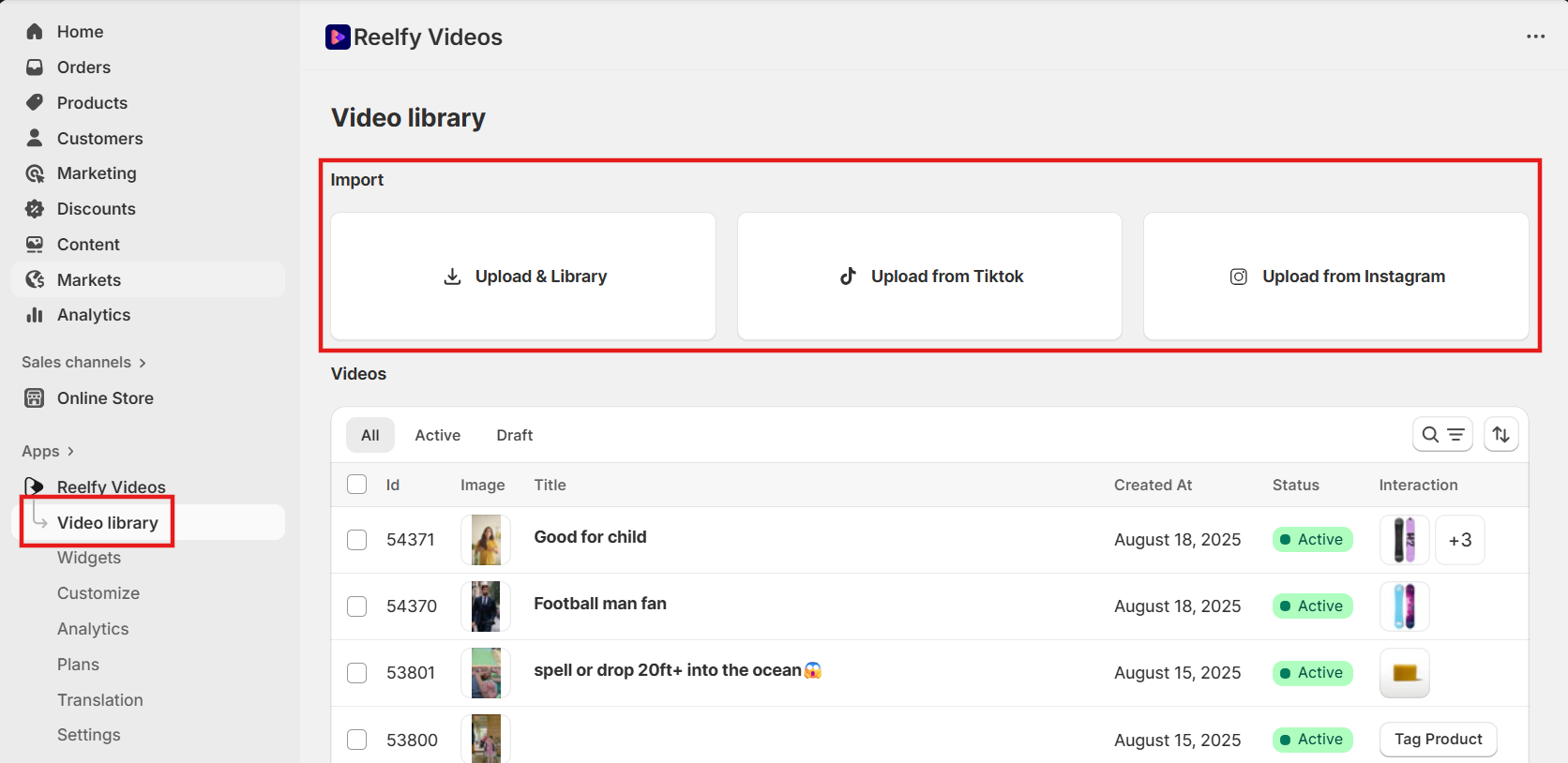
In the Reelfy dashboard, go to Video library.
Import videos from Instagram or TikTok, or upload your own files.
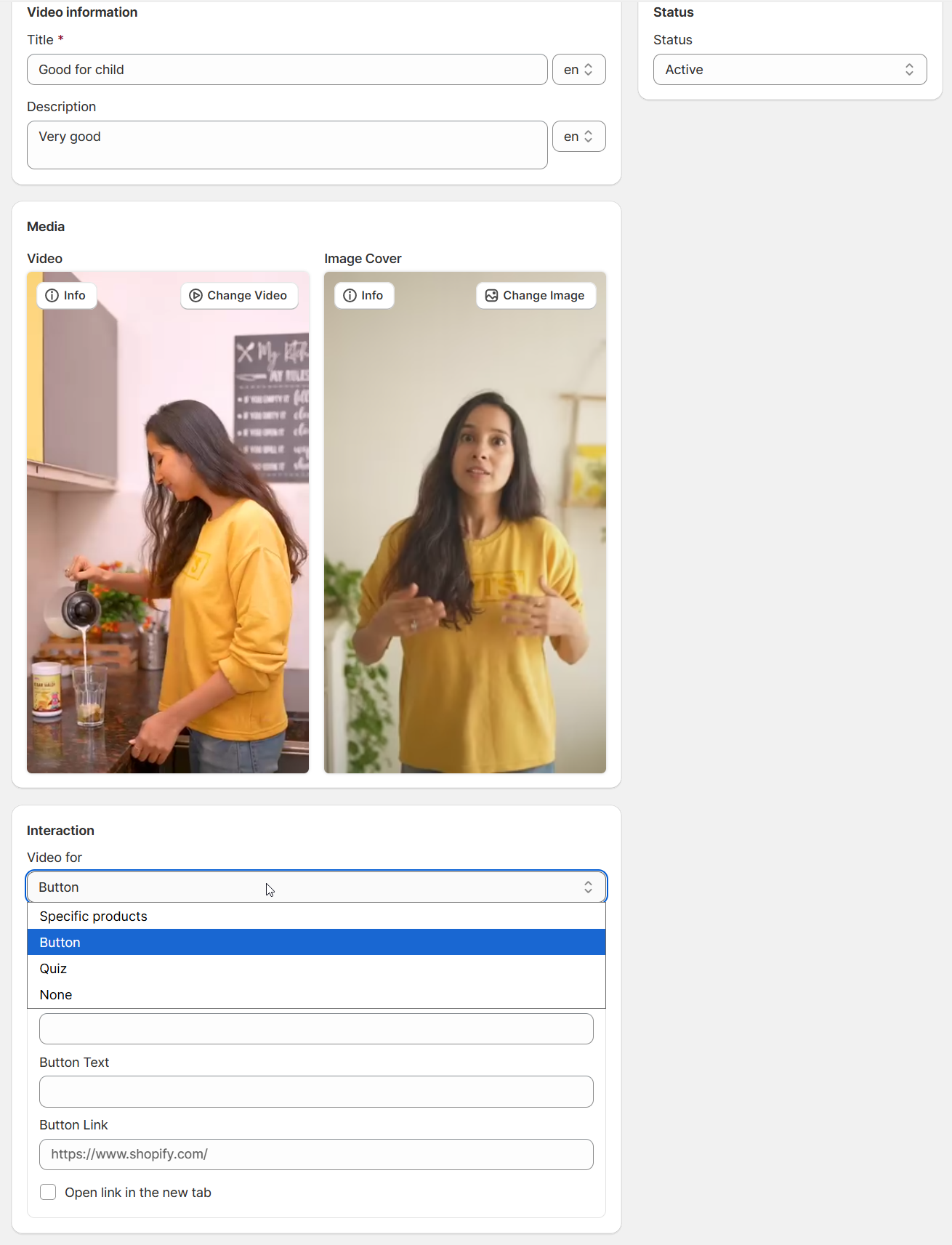
In each video you can tag products or link items to make video “shoppable.”
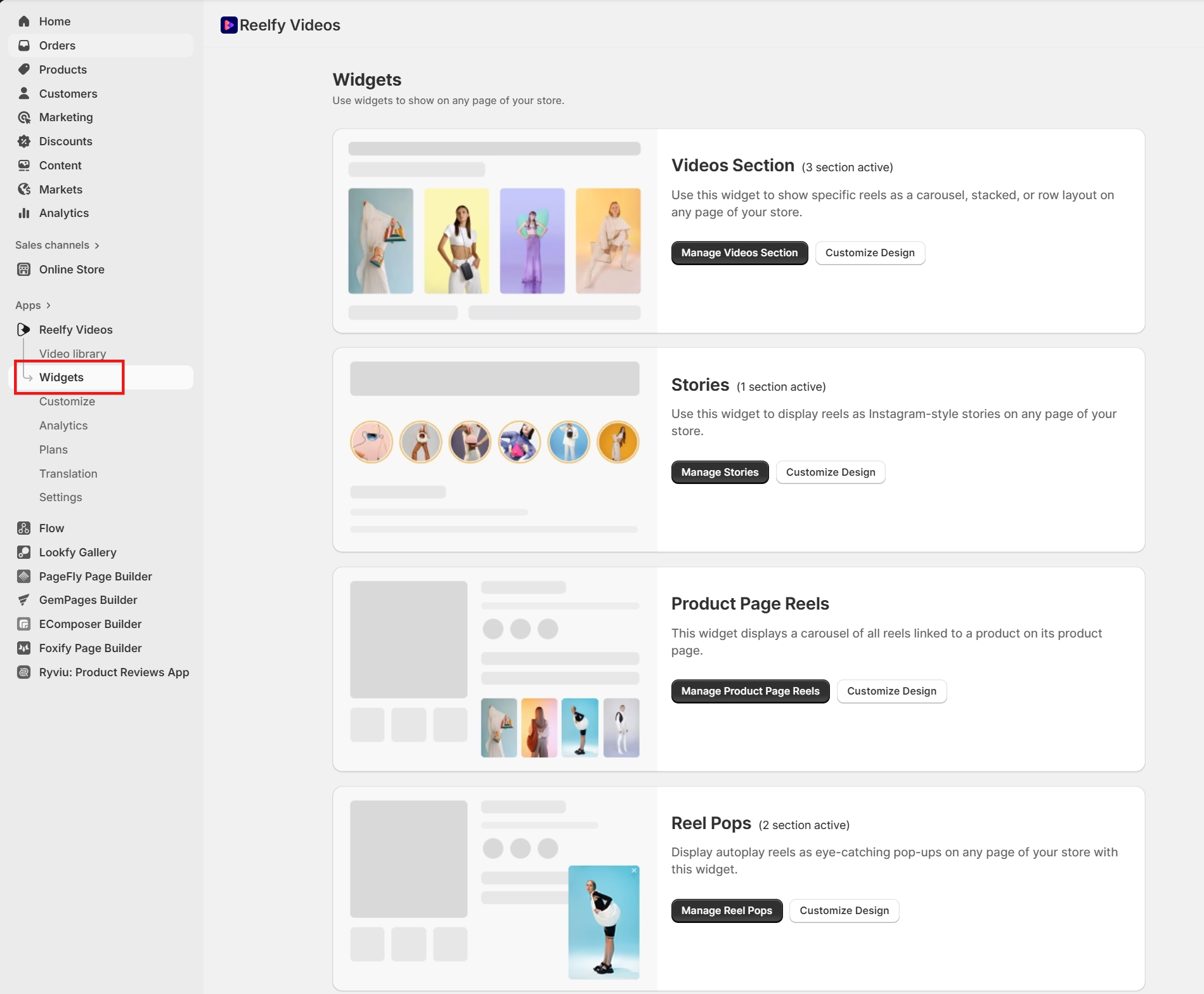
Then you can organize videos into widgets. This gives you ready-to-display video galleries.
When you create a new widget, you can choose one in 3 types: Section, Stories and Reel Pops.
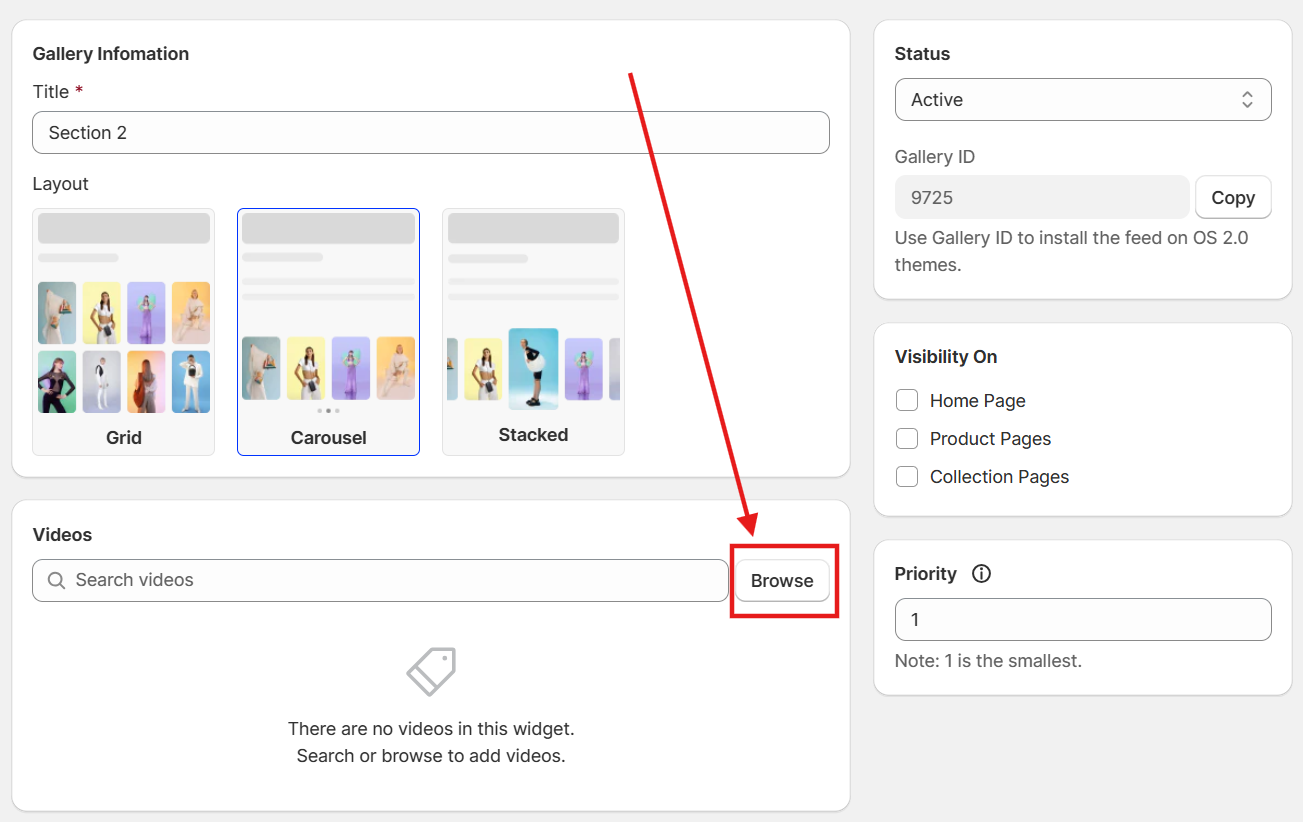
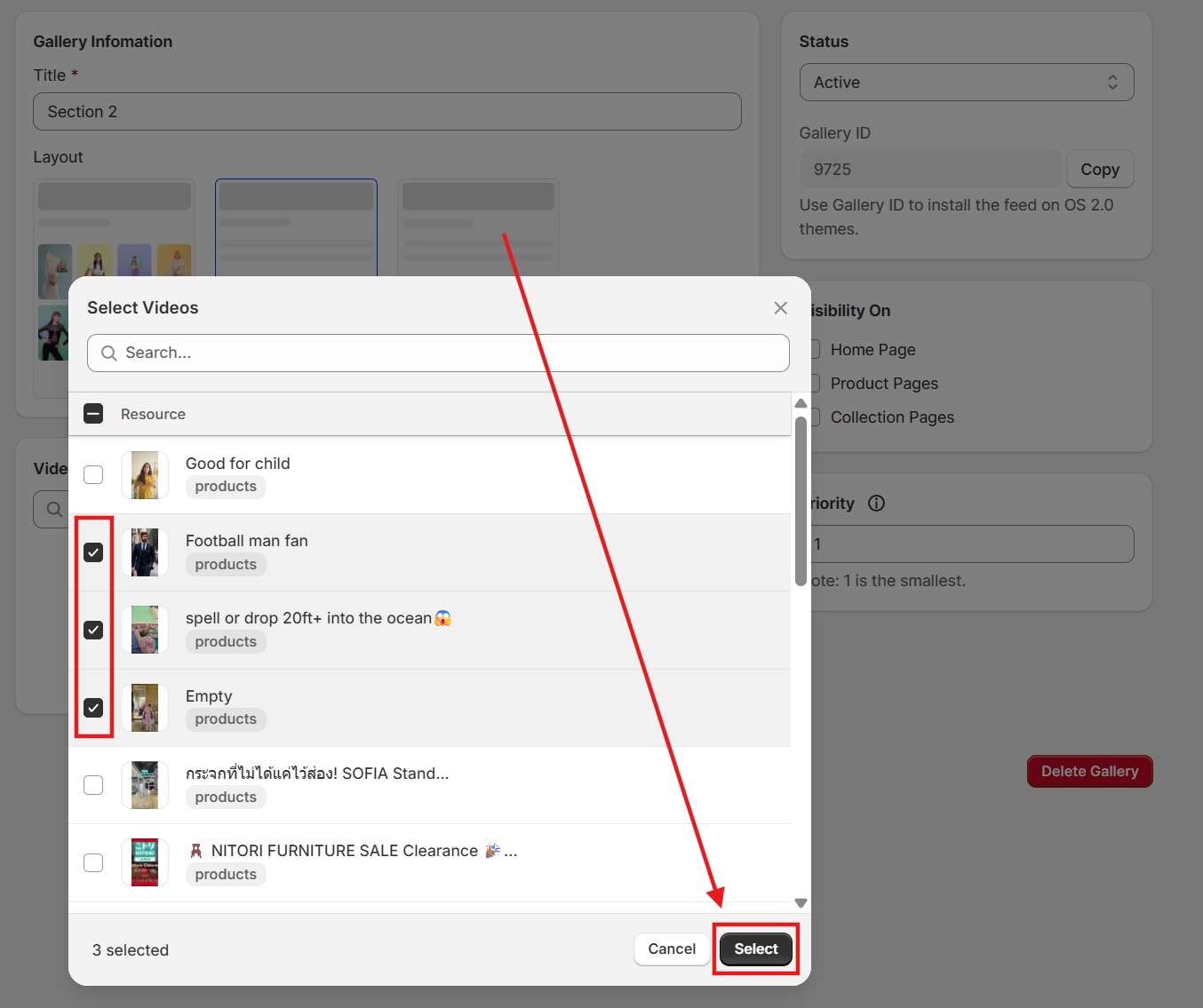
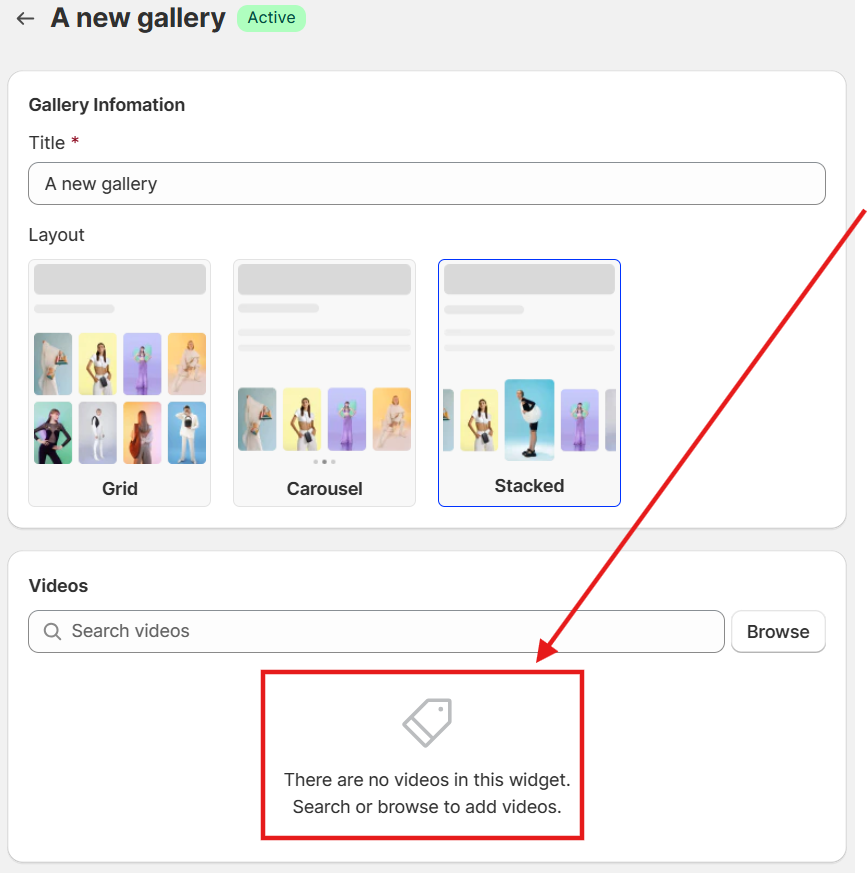
After that, you should add videos into your widget by clicking the Browse button.
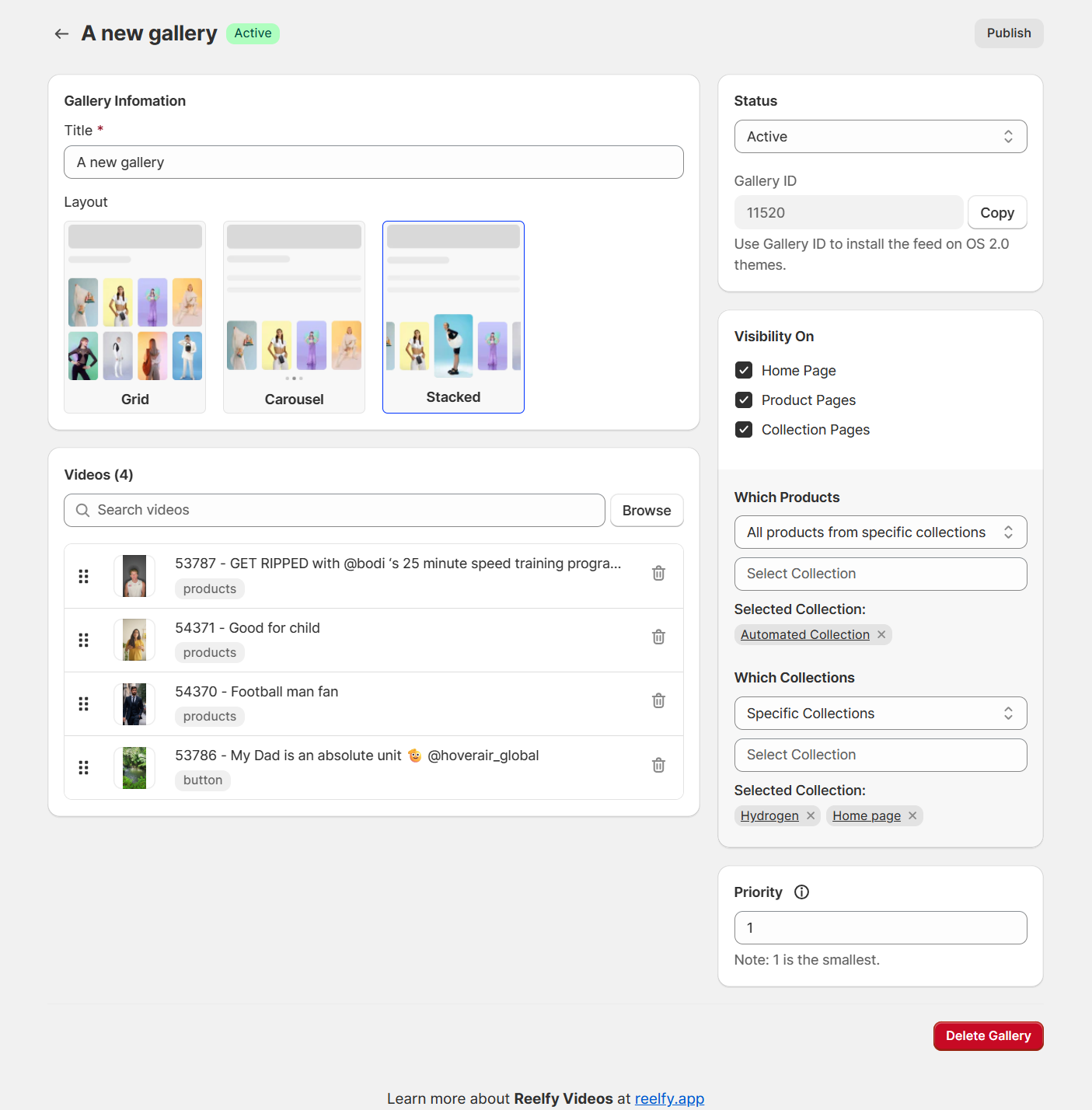
In the widget page, you can change the settings corresponding to your requirement.
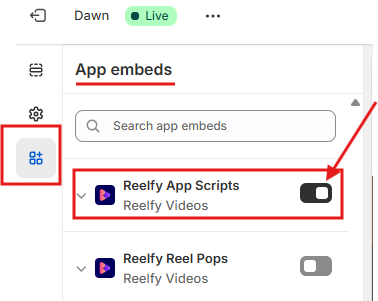
To ensure Reelfy functions correctly on your store, you must enable the Reelfy App Scripts.
At Online Store → Themes → “Edit theme” or “Customize” (Current theme), please click App embeds, then click the toggle button to enable the Reelfy App Scripts if it is disabled.
You can add your widget via block/section to a landing page, homepage, product page or a collection page.
Or you can add your widget via embed code to your store’s pages.
Check the status of the Reelfy App Scripts, it have to be enabled.
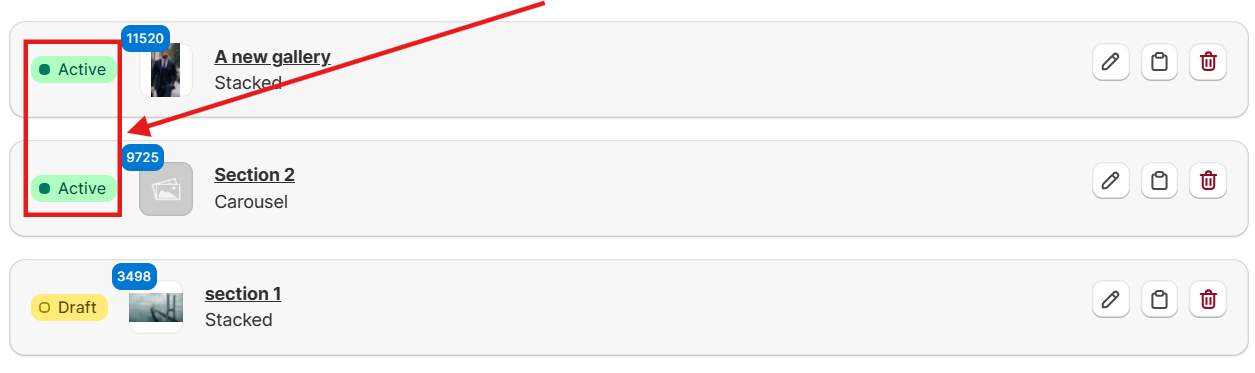
Check the widget/gallery status to see if it is active.
Verify if there are any videos in the widget/gallery.
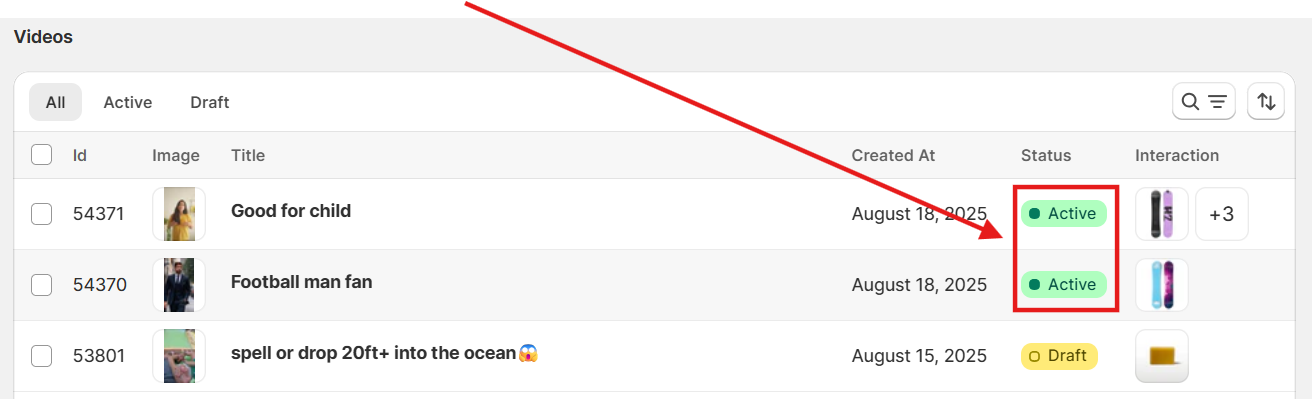
Check the status of all videos in the widget. At least one video have to be active.
Check the Reelfy section/block position. It have to be in the right place in the template.
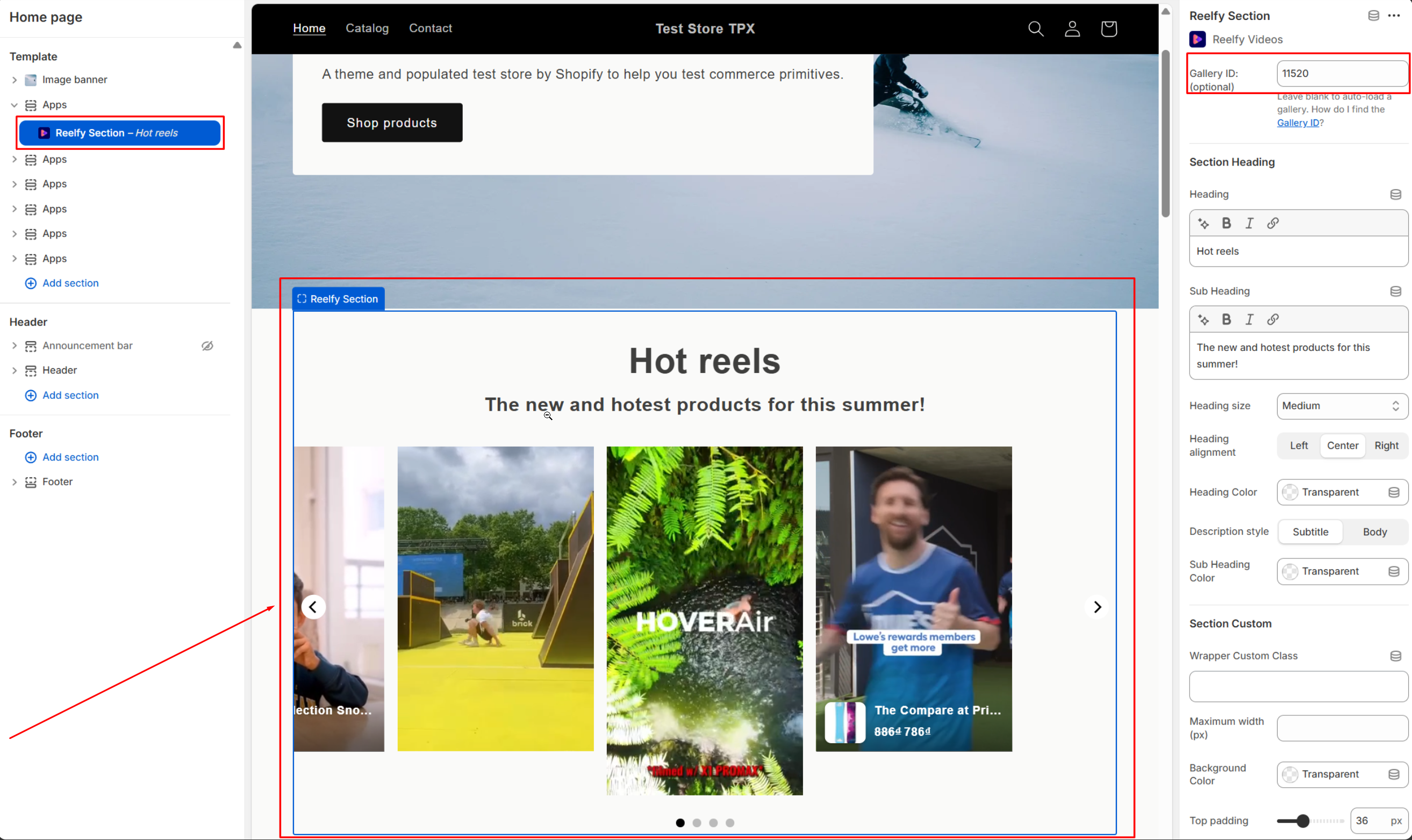
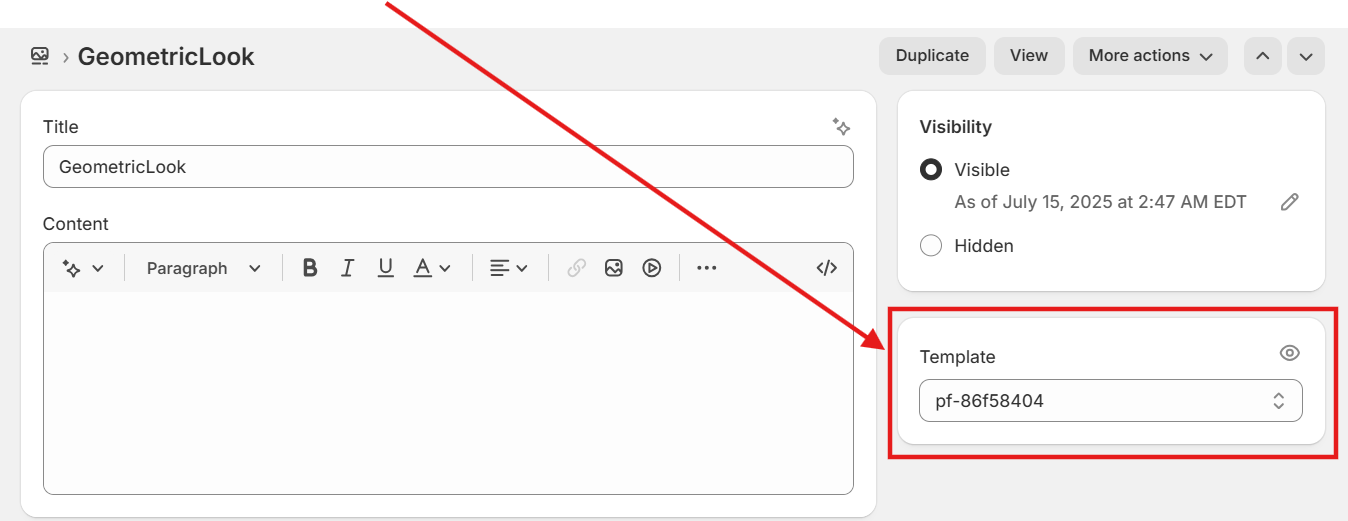
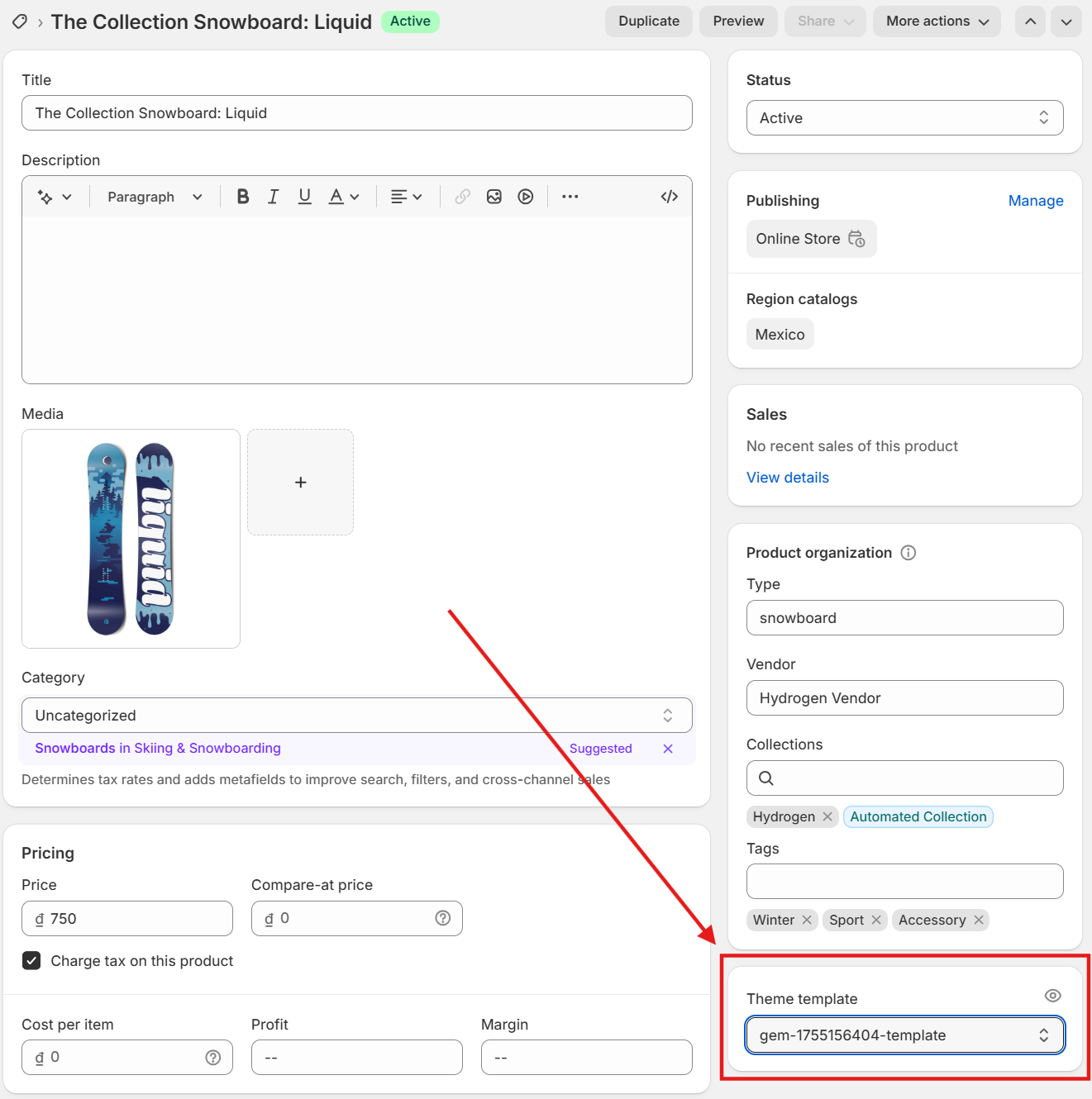
Check the page you are viewing to see if it has a corresponding setup: does it have the correct template; do you input the gallery/widget ID to the Reelfy section/block in its template (if it is required)…